Introduction
Protégé is a free, open-source ontology editor that enables users to create, visualize, and manage ontologies in the Web Ontology Language (OWL). It provides a user-friendly graphical interface for building formal knowledge representations that can be used for semantic reasoning and data integration across diverse engineering domains.
|
Protégé is a critical tool for digital engineering practitioners who need to develop and maintain ontologies for interoperability, data integration, and automated reasoning in complex systems engineering workflows. |
Overview
Protégé is a powerful ontology development platform that supports the creation of domain-specific ontologies aligned with top-level ontologies like BFO. It provides a graphical interface for ontology development, making it accessible to both ontology experts and domain specialists who may not be familiar with formal logic or semantic web technologies.
Key features of Protégé include: - Support for OWL2 language with Manchester OWL syntax - Graphical interface for creating simple restrictions - Reasoning capabilities through integrated reasoners - Multiple views and tabs for different ontology development tasks - Import/export capabilities for various ontology formats
| Protégé has both desktop and web-based versions, with the desktop version offering more advanced features and plugin support. |
Position in Knowledge Hierarchy
Broader concepts: - Part III (is-a)
Details
Protégé Architecture and Components
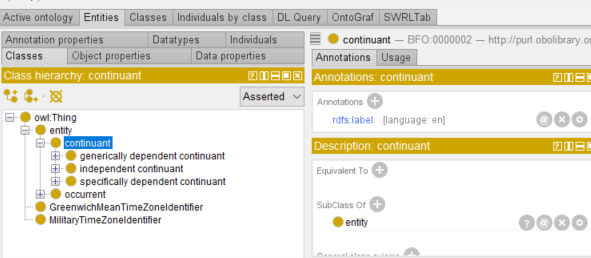
Protégé is organized into Views and Tabs which can be edited from the Window menu. The default Tabs provide specialized interfaces for different ontology development tasks:
Tab Name |
Functionality |
Active Ontology |
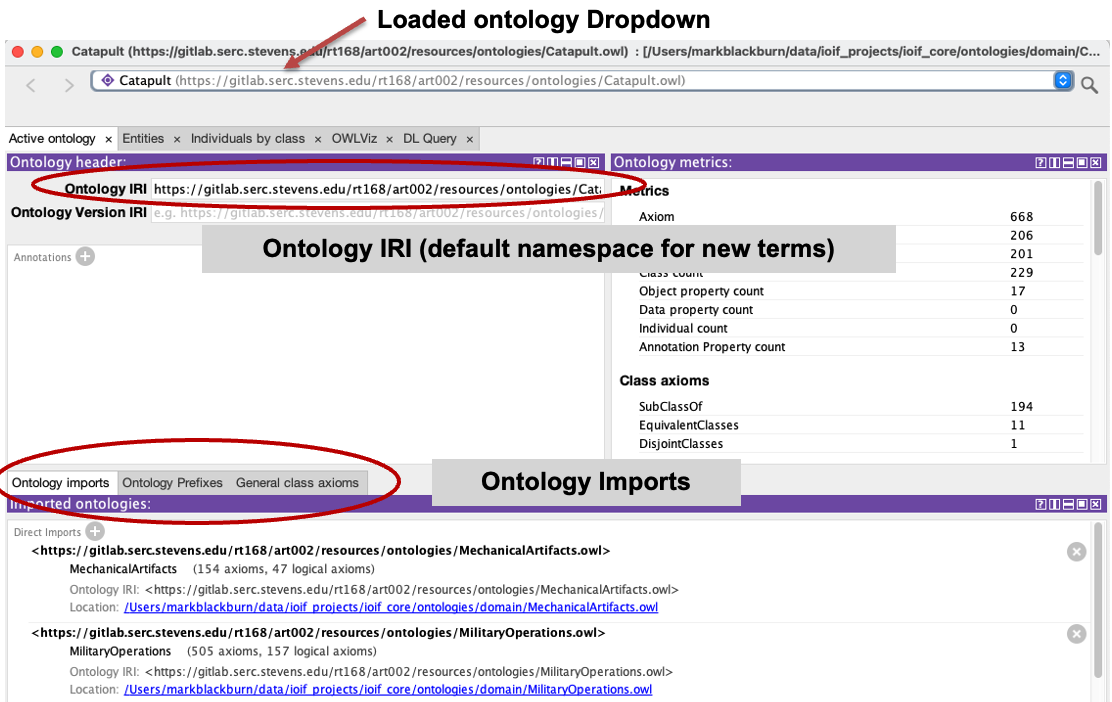
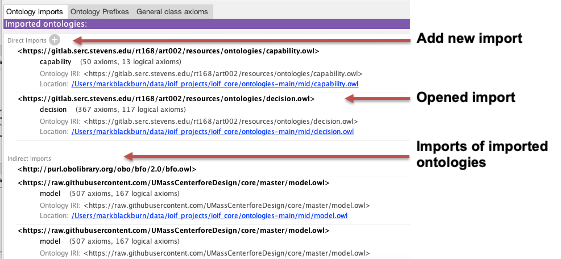
Provides metadata about the ontology, displays imports, supported prefixes, and general class axioms |
Entities |
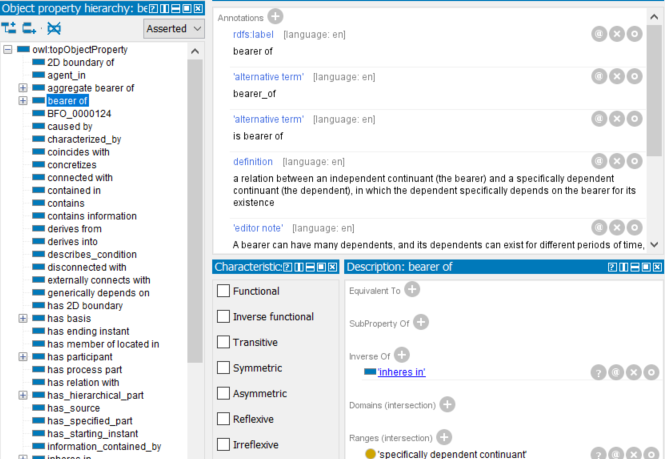
Used to edit ontology resources (classes, properties, individuals) |
Classes |
Displays and edits classes and their relationships |
Individuals by class |
Displays taxonomy and associated individuals organized by their type |
DL Query |
Local query engine using Manchester OWL Syntax for querying the ontology |
SWRL Tab |
Allows creation of Semantic Web Rule Language (SWRL) rules |
Protégé Workspace
Protégé maintains the ontology graph in memory, and the loaded ontologies form a workspace. Within that workspace, all resources sharing the same IRI are treated as a singular entity. The workspace is window-specific, meaning that when an ontology is loaded into the same window, it’s loaded into the current workspace, but if opened in a second window, it will be in a separate workspace.
|
Changes made in a separate workspace to a shared file will be detected by Protégé and imported during the saving process. Be cautious when working with multiple workspaces to avoid unexpected changes. |
Reasoning in Protégé
Protégé can call a reasoner in its editor environment and load results back into the ontology. By default, Protégé uses the HermiT reasoner, which supports OWL’s full logic profile. Other reasoners such as Pellet, Elk, and FaCT++ can be downloaded via the "File" dropdown’s "Check for plugins" option.
|
The reasoner must be active to evaluate DL queries. Once started, it must be manually stopped before editing the ontology further to prevent automatic re-running upon changes. |
= Example of reasoning process in Protégé
= 1. Load ontology
= 2. Start reasoner (HermiT)
= 3. Inferred taxonomy becomes available
= 4. Query using DL Query tab
= 5. Stop reasoner before making changes
Practical applications and examples
Step-by-Step: Creating a Simple Ontology in Protégé
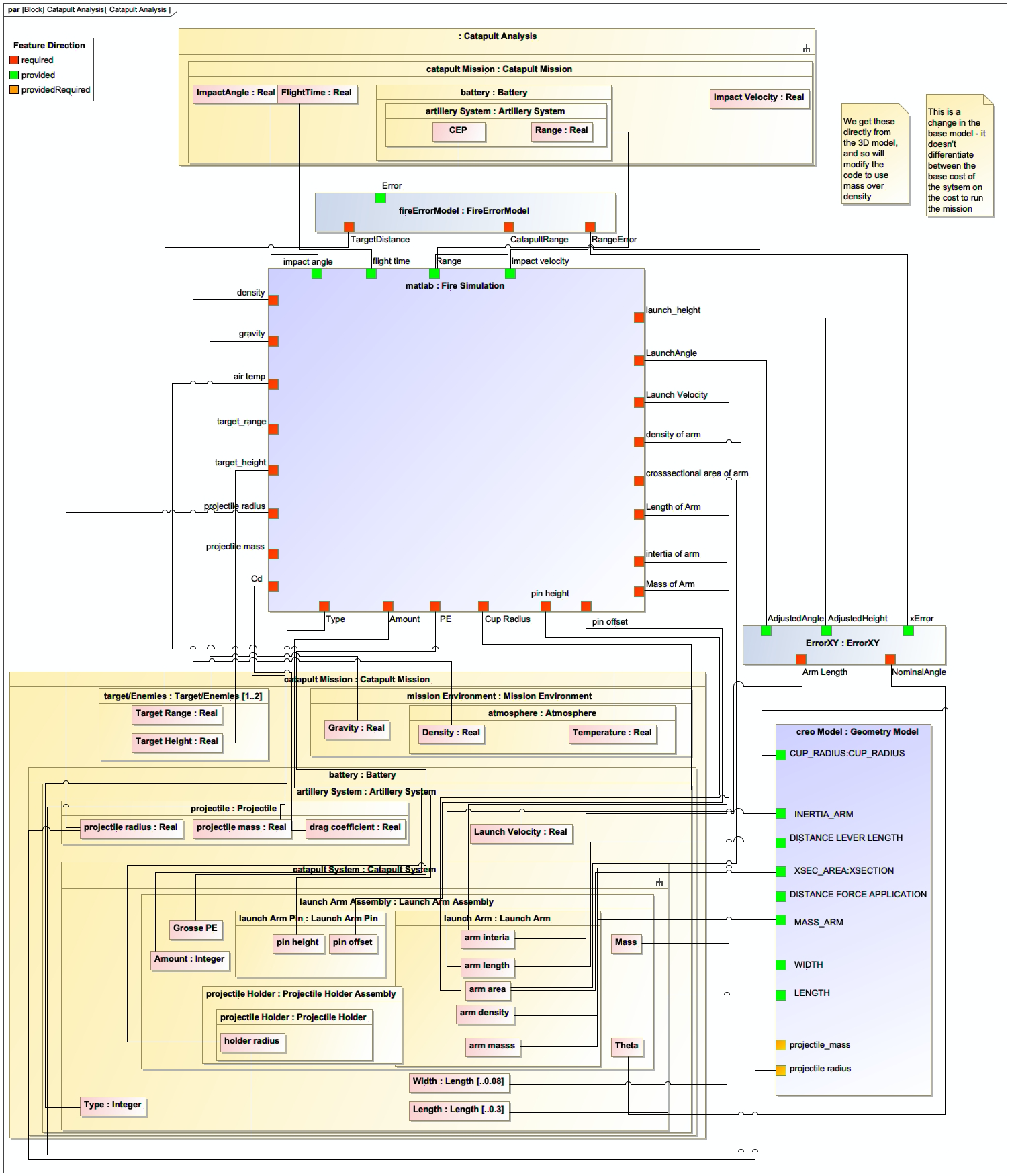
This example demonstrates how to create a basic ontology for a catapult system, aligning with the Catapult example from the context.
|
Make sure to have Protégé installed before starting. Download the latest desktop version from https://protegewiki.stanford.edu/wiki/Main_Page. |
|
Use clear and descriptive names for your classes and properties to ensure readability and maintainability. This is especially important when aligning with SysML models. |
Step 1: Create a New Ontology
-
Launch Protégé
-
From the File menu, select New
-
In the New Ontology dialog, choose "OWL 2" as the language
-
Enter a name for your ontology (e.g., "CatapultOntology")
-
Click OK to create the new ontology
Step 2: Define the Ontology Metadata
-
Go to the "Active Ontology" tab
-
In the "Ontology IRI" field, enter a unique identifier (e.g., http://example.org/catapult)
-
In the "Version IRI" field, enter a version identifier (e.g., http://example.org/catapult/v1)
-
Click "Save" to save your ontology
Step 3: Add a Class for the Catapult
-
Go to the "Classes" tab
-
Right-click in the classes list and select "Create New Class"
-
Name the class "Catapult"
-
Right-click the new class and select "Add Annotation"
-
In the "Annotation" dialog, select "rdfs:label" and enter "Catapult" as the value
-
Click "OK" to save the annotation
Step 4: Add a Property for Arm Length
-
Go to the "Object Properties" or "Data Properties" tab (depending on the type of property)
-
Right-click and select "Create New Property"
-
Name the property "hasArmLength"
-
Right-click the property and select "Add Annotation"
-
Add a label "Arm Length" and a definition "The length of the catapult’s arm in meters"
-
Click "OK" to save the property
Step 5: Add a Class for Arm Length
-
Go to the "Classes" tab
-
Right-click and select "Create New Class"
-
Name the class "ArmLength"
-
Right-click the class and select "Add Annotation"
-
Add a label "Arm Length" and a definition "The length of the catapult’s arm in meters"
-
Click "OK" to save the annotation
Step 6: Define the Relationship
-
Go to the "Classes" tab
-
Right-click the "Catapult" class and select "Add Restrictions"
-
Click the "+" button next to "hasArmLength"
-
In the "Class Expression Editor," select "ArmLength" from the list
-
Click "OK" to save the restriction
Step 7: Save Your Ontology
-
Click "File" > "Save" to save your ontology
-
Choose a location and name (e.g., catapult.owl)
-
Click "Save" to complete
|
The ontology you’ve created now defines a Catapult class with a hasArmLength property that links to an ArmLength class. This structure can be aligned with SysML models using stereotypes to represent the ontology concepts in engineering models. |
Related wiki pages
References
Knowledge Graph
Visualize Protégé’s role in the ontology development ecosystem
Associated Diagrams